Gmail Account Setup
Learn how to add custom domain email addresses (like yourname@yourcompany.com) to Gmail and use them with DraftMerge for sending professional campaigns.
connect@softcofee.com), you must first add it as a verified alias in Gmail. This guide walks you through the complete setup.
Overview
This setup involves four phases:
- Generate a Google App Password — required for authentication
- Add the Custom Email to Gmail — register the alias
- Configure SMTP Settings — point Gmail to its own servers
- Verify the Address — confirm ownership via email
Phase 1: Generate a Google App Password
Google requires App Passwords for third-party applications. You'll use this password in the SMTP configuration later.
1Enable 2-Step Verification
App Passwords require 2-Step Verification to be enabled on your Google Account.
- Go to myaccount.google.com
- Click Security in the left menu
- Under "How you sign in to Google", find 2-Step Verification
- If it's off, click it and follow the setup prompts
2Create an App Password
- Stay on the Security page
- Scroll to the bottom of the 2-Step Verification section
- Click App passwords
- In the dialog, enter a name like
Custom Domain Email - Click Create
- Copy the 16-character password shown in the yellow box
Important: Save this password somewhere safe. You won't be able to see it again.
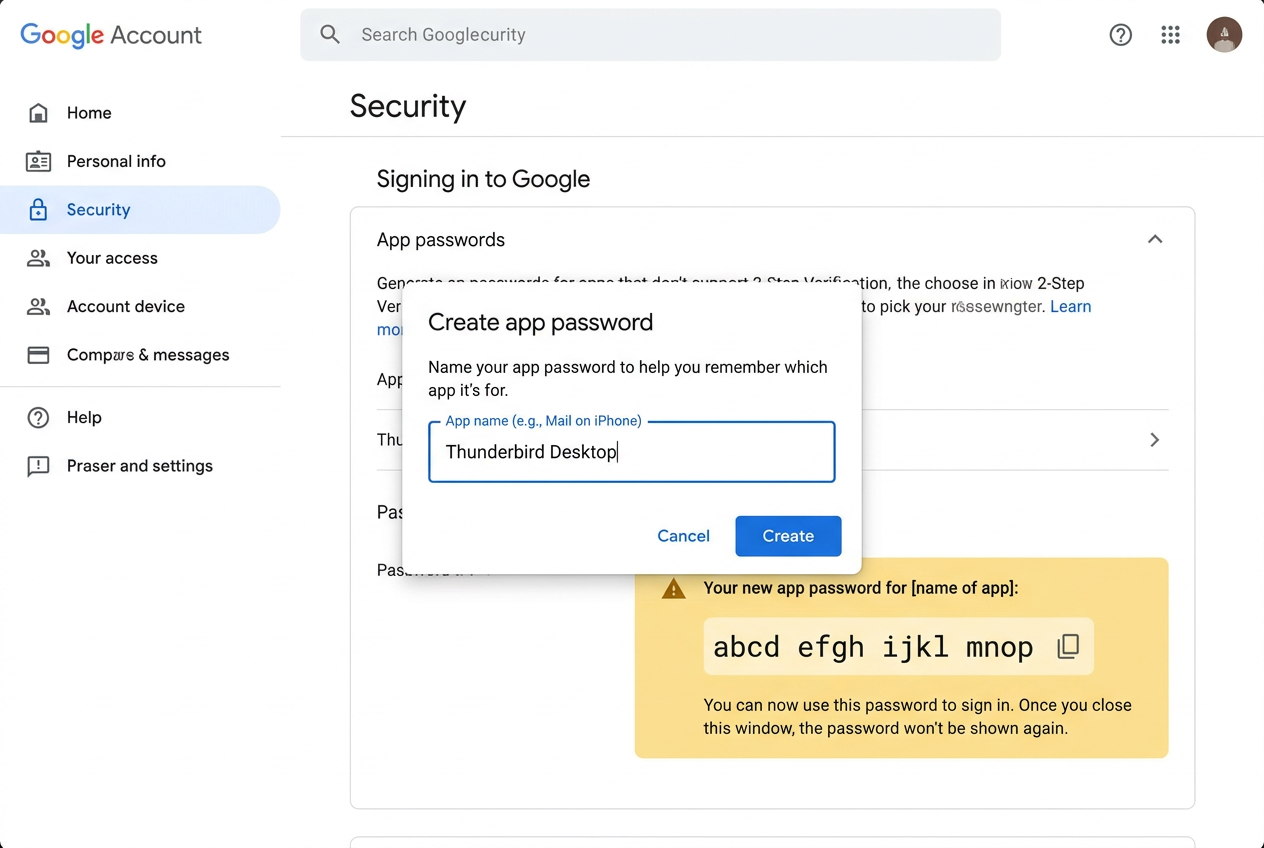
Figure 1: Google Account Security page — App Passwords section
Phase 2: Add the Custom Email Address to Gmail
3Open Gmail Settings
- Open Gmail in your browser
- Click the Settings gear icon (top right)
- Click See all settings
- Go to the Accounts and Import tab
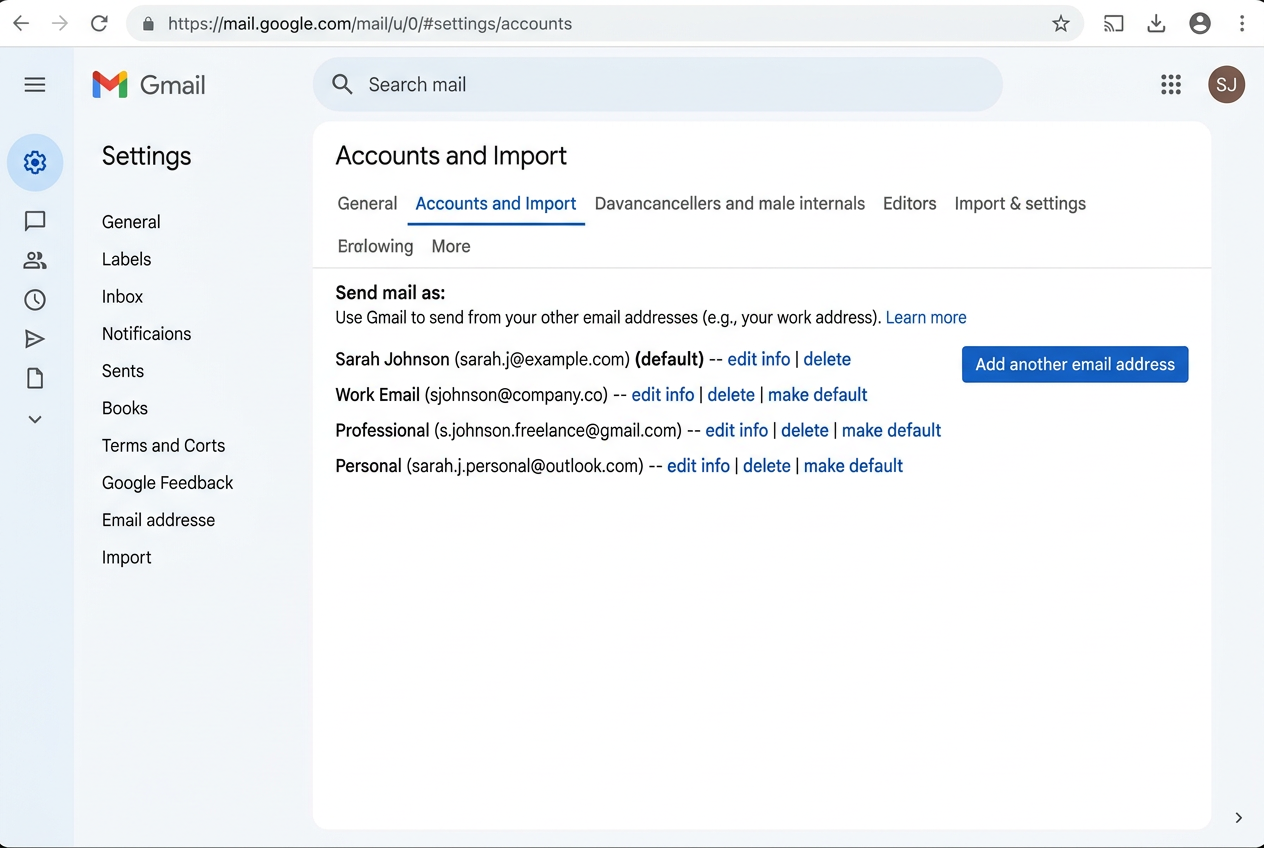
Figure 2: Gmail Settings → Accounts and Import tab
4Add Another Email Address
- Find the "Send mail as" section
- Click Add another email address
- A popup dialog appears
- Enter your Name (how recipients will see you)
- Enter your custom email address (e.g.,
connect@softcofee.com) - Leave "Treat as an alias" checked ✅
- Click Next Step
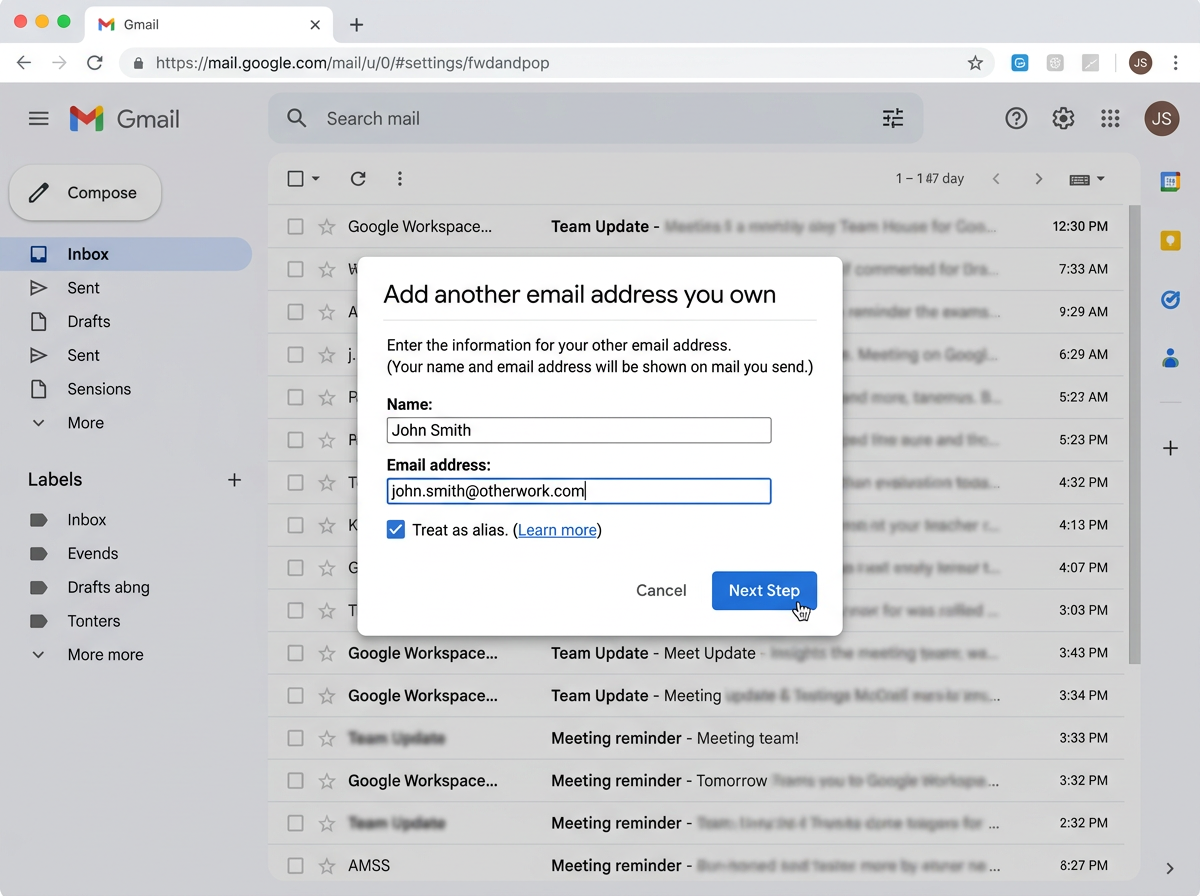
Figure 3: "Add another email address you own" dialog
Phase 3: Configure Gmail's SMTP Settings
smtp.gmail.com) with your App Password.
5Enter SMTP Configuration
Fill in the fields exactly as shown below:
| Field | Value |
|---|---|
| SMTP Server | smtp.gmail.com |
| Port | 587 |
| Username | Your original Gmail address (e.g., yourname@gmail.com) |
| Password | The 16-character App Password from Phase 1 |
| Connection | ✅ Secured connection using TLS (recommended) |
Click Add Account.
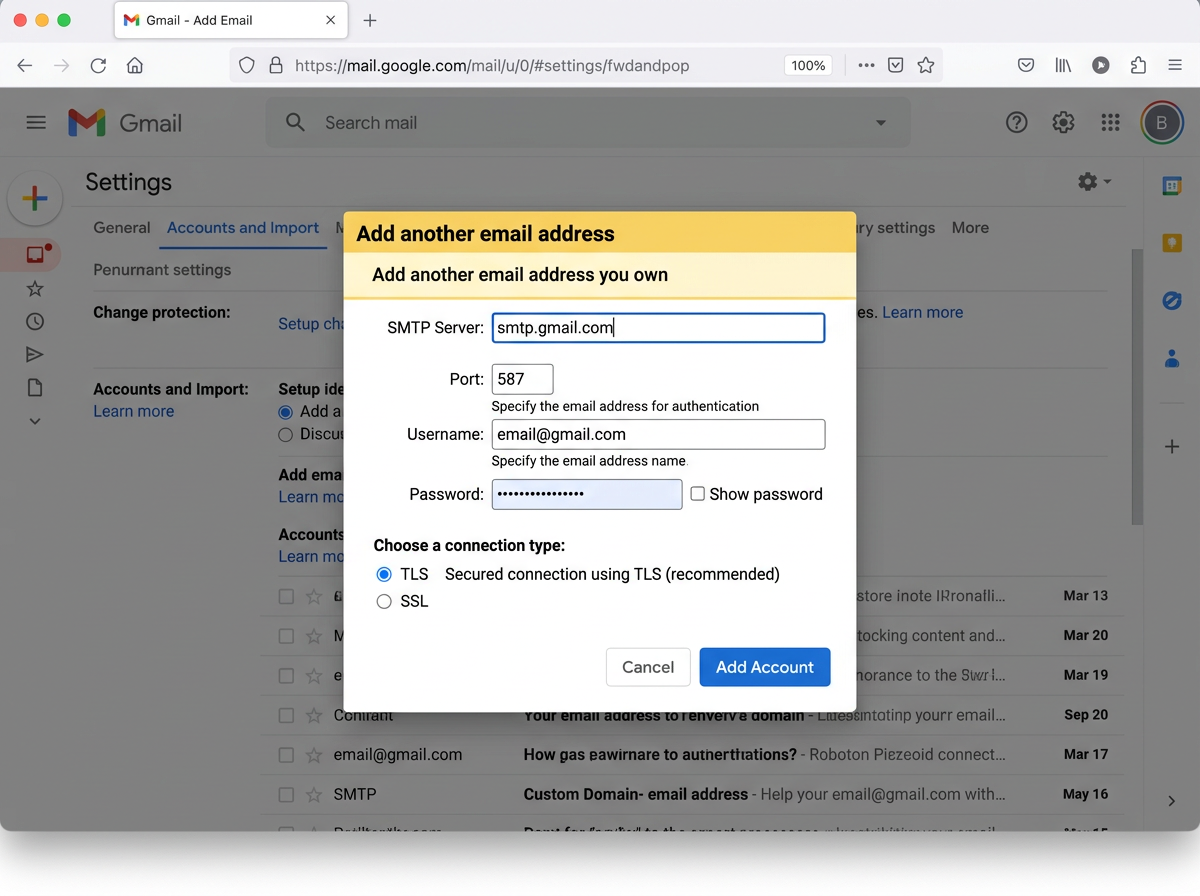
Figure 4: SMTP configuration — use Gmail's own server
smtp.gmail.com with your App Password tells Gmail "this is me, sending from an alias I own." External SMTP servers (like Cloudflare's) don't have your credentials and will reject the connection.
Phase 4: Verify the Address
6Confirm Ownership
- Gmail sends a verification email to your custom address (e.g.,
connect@softcofee.com) - If you have email forwarding set up (e.g., via Cloudflare Email Routing), the verification code arrives in your Gmail inbox
- Open the email from
gmail-noreply@google.com - Either:
- Click the verification link in the email, OR
- Copy the confirmation code and paste it into the Gmail setup dialog
- Click Verify
connect@softcofee.com using DraftMerge. When composing in Gmail, use the "From" dropdown to switch between your addresses.
Repeat for Additional Addresses
To add more custom domain addresses (e.g., support@softcofee.com, draftmerge@softcofee.com):
- Go back to Settings → Accounts and Import → Send mail as
- Click Add another email address
- Repeat steps 4-6 above
- Reuse the same App Password — you only need to generate it once
Using Your Custom Address in DraftMerge
Once your custom email is verified in Gmail:
- Open the DraftMerge extension
- Go to Settings
- In the "From Address" field, enter your custom email (e.g.,
connect@softcofee.com) - Save settings
- When you send campaigns, recipients will see emails from your custom domain address
- Your authenticated Gmail account (
yourname@gmail.com), OR - A verified alias in Gmail's "Send mail as" settings
Troubleshooting
"Authentication failed" error
- Double-check the App Password (16 characters, no spaces)
- Ensure you're using
smtp.gmail.com(not your domain's SMTP) - Verify 2-Step Verification is enabled
- Try generating a new App Password
Verification email not received
- Check your spam folder
- If using email forwarding, ensure it's working (test by sending a regular email to the custom address)
- Wait 5-10 minutes — verification emails can be delayed
- Click "Resend" in the Gmail dialog if available
Recipients see "via gmail.com"
This is normal when using Gmail's free tier with a custom domain. To remove this:
- Upgrade to Google Workspace ($7/month) — hosts your domain natively on Google's servers
- Or accept the "via gmail.com" label — it doesn't affect deliverability
⚠️ Critical: Silent Email Failures with Invalid From Addresses
What Happens?
When you use a "From" address that is neither:
- Your authenticated Gmail account (
yourname@gmail.com), OR - A verified alias in Gmail's "Send mail as" settings
Gmail's API will accept the message and return a success response, but then silently drop it without delivery. This is a security measure by Gmail to prevent spoofing.
Symptoms
- ✅ Campaign status shows "Sent Successfully"
- ✅ No error messages in DraftMerge
- ✅ No bounce notifications
- ❌ Recipients never receive the email
- ❌ No record of the email in Gmail's "Sent" folder
Why Does This Happen?
This is not a DraftMerge bug — it's inherent Gmail behavior. The Gmail API's messages.send endpoint accepts messages with any From header for processing, but Gmail's internal mail routing performs additional authentication checks. If the From address fails these checks, the message is dropped silently with no error returned to the API caller.
How to Verify Your From Address
Before sending campaigns, verify your From address is properly set up:
- Open Gmail in your browser
- Click the Settings gear icon → See all settings
- Go to the Accounts and Import tab
- Look at the "Send mail as" section
- Verify your custom email address appears in this list
- If it's not there, follow the setup steps in the sections above to add it
How to Fix Silent Failures
If you suspect emails are failing silently:
- Stop the campaign immediately
- Verify your From address in Gmail settings (see above)
- If the address is not verified, add it using the "Send mail as" procedure
- Wait for the verification email and confirm the address
- Test by sending a single email to yourself first
- Resume or restart your campaign
Common Mistakes
| ❌ Wrong | ✅ Correct |
|---|---|
| Using an unverified custom domain email | Verify the email in Gmail's "Send mail as" first |
| Typing the From address manually without verification | Only use addresses shown in Gmail's "Send mail as" list |
| Assuming "Sent Successfully" means delivered | Always test with a real email first |
| Using a different email provider's SMTP settings | Use smtp.gmail.com with App Password (as shown above) |
Related Topics
- Getting Started with DraftMerge
- Multiple Sender Accounts
- Email Delivery Best Practices
- Frequently Asked Questions
Need Help?
If you're stuck:
- Check our Troubleshooting Guide
- Submit a request via our Support Form
- Visit our GitHub repository