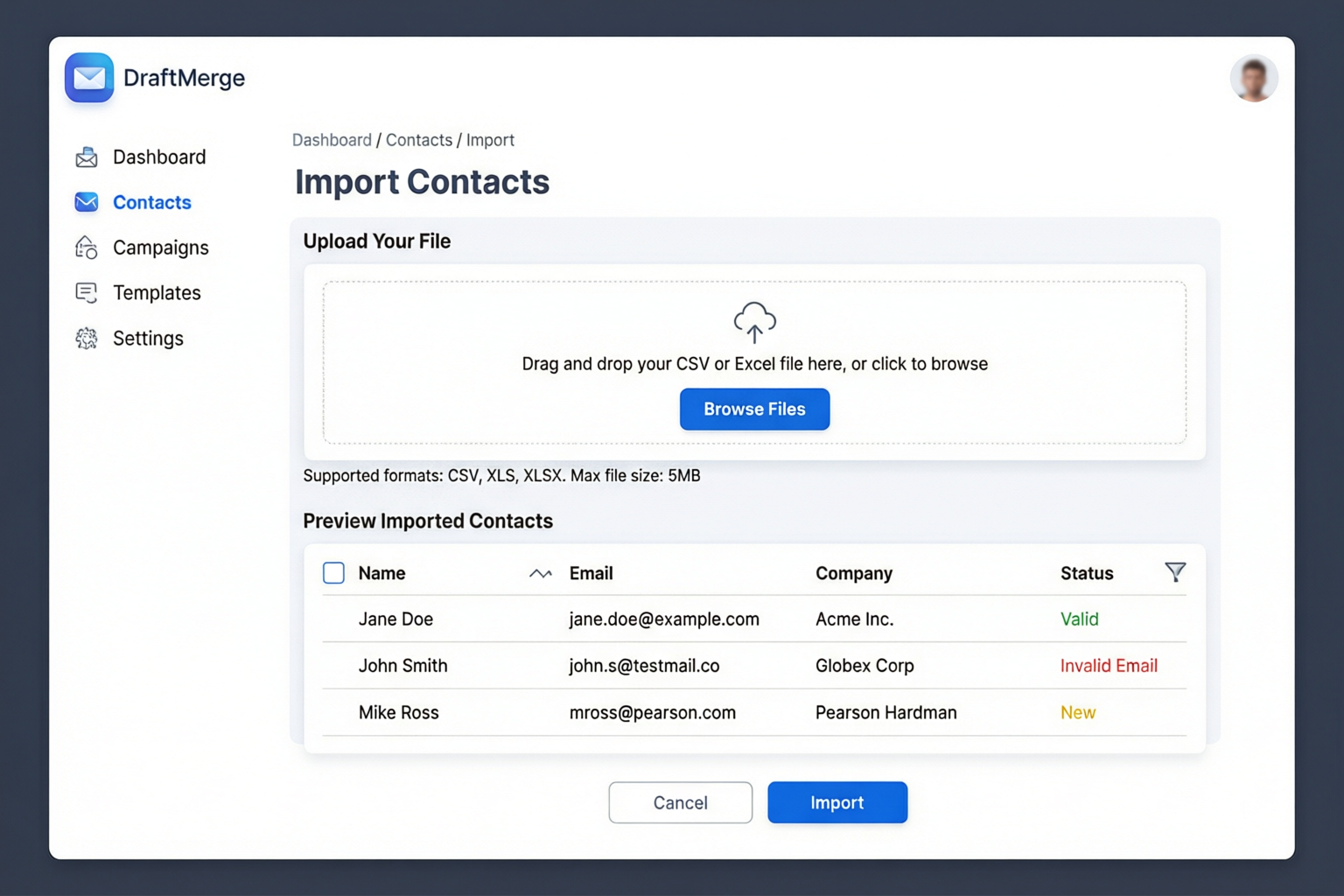
Import contacts from CSV or Excel files with drag-and-drop simplicity
Importing Contact Lists
Supported File Formats
DraftMerge supports the following file formats for contact import:
- CSV (.csv) — Comma-separated values, UTF-8 encoding recommended
- Excel (.xlsx) — Microsoft Excel 2007 or later
- Google Sheets — Direct integration via Google Sheets API
Required Columns
Your import file must include at least the Email column. Optional columns enhance personalization:
| Column Name | Required | Description | Example |
|---|---|---|---|
Email |
✅ Required | Recipient's email address | john@example.com |
FirstName |
Optional | Recipient's first name | John |
LastName |
Optional | Recipient's last name | Doe |
Company |
Optional | Company name | Acme Corp |
Phone |
Optional | Phone number | +1-555-0123 |
CustomField1 |
Optional | Any custom data for merge fields | Premium |
Import Steps
Step 1: Prepare Your File
Create a CSV or Excel file with the required columns. Ensure email addresses are valid and properly formatted.
Tip: Use UTF-8 encoding for CSV files to support special characters and accents.
Step 2: Open Import Dialog
In the DraftMerge extension, click the Lists tab, then click Import Contacts.
Step 3: Upload File
Drag and drop your file into the upload area, or click to browse and select a file from your computer.
Step 4: Map Columns
DraftMerge will automatically detect columns. Verify the mapping is correct:
- Email column →
Email - Name columns →
FirstName,LastName - Other columns → Map as needed
Step 5: Review & Import
Preview the imported data, check for duplicates or errors, then click Import to add contacts to your list.
Managing Subscriber Lists
Viewing Your Lists
Navigate to the Lists tab to see all your contact lists. Each list shows:
- List Name: Custom name you assigned
- Total Contacts: Number of email addresses in the list
- Active: Contacts who haven't unsubscribed
- Unsubscribed: Contacts who opted out
- Last Updated: Most recent import or modification date
Editing Lists
You can modify your lists at any time:
- Add Contacts: Import additional contacts to an existing list
- Remove Contacts: Select specific contacts and click Remove
- Rename List: Click the list name and edit it
- Delete List: Click the trash icon to permanently delete a list
Filtering & Segmentation
Use filters to segment your lists for targeted campaigns:
- By Status: Active, Unsubscribed, Bounced
- By Date: Imported within a specific date range
- By Domain: Filter by email domain (e.g., @gmail.com, @company.com)
- By Custom Fields: Filter by any custom data you imported
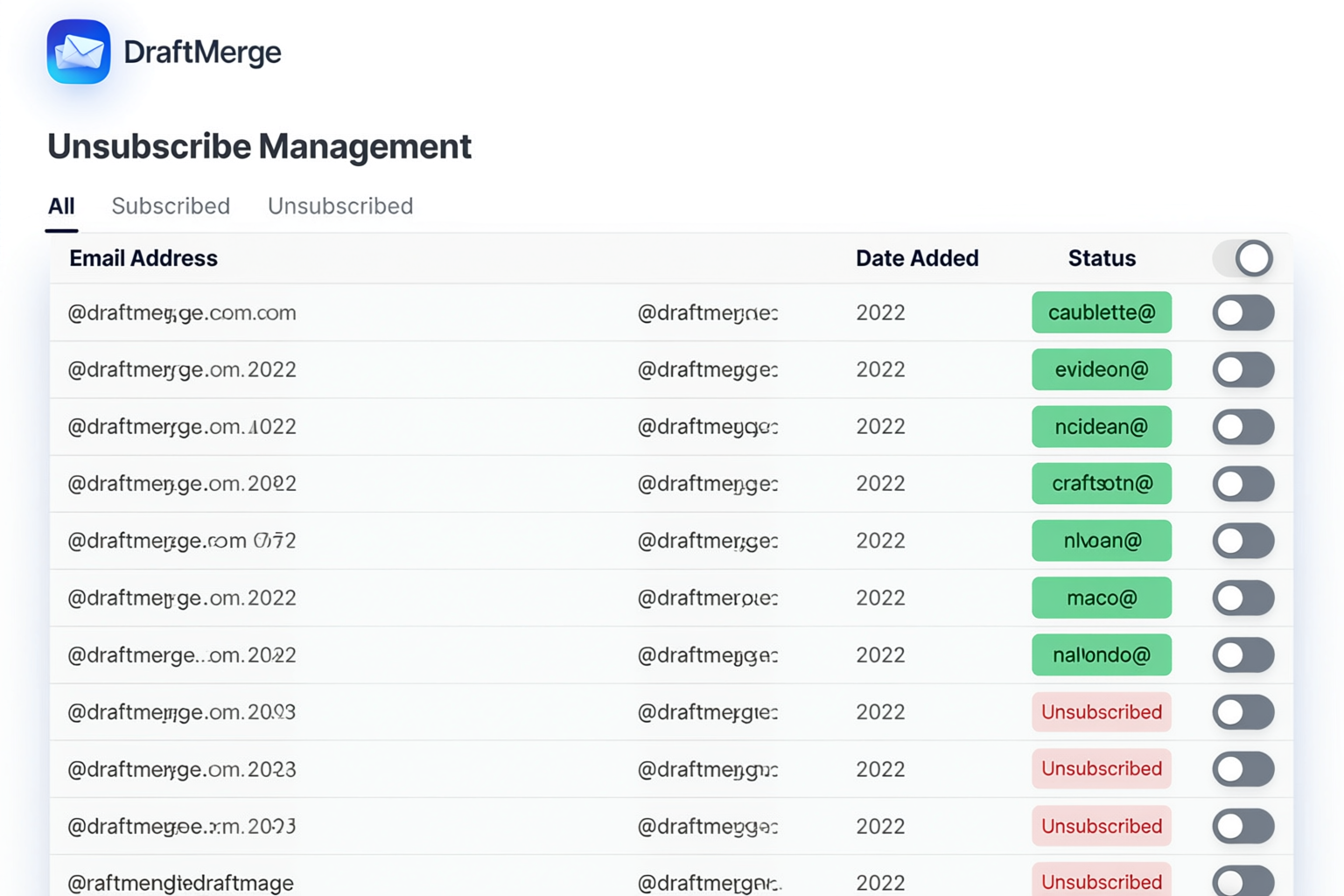
Manage subscription status and handle unsubscribe requests with ease
Global Unsubscribe Management
How Unsubscribes Work
DraftMerge includes a built-in unsubscribe mechanism to comply with email regulations (CAN-SPAM, GDPR, CASL):
- Every email sent includes an unsubscribe link in the footer
- When a recipient clicks the link, they're taken to a confirmation page
- Upon confirmation, the email address is added to your global suppression list
- The address is automatically excluded from all future campaigns
Viewing Unsubscribed Contacts
To see who has unsubscribed:
- Go to the Lists tab
- Click the Unsubscribed filter
- View the list of email addresses with unsubscribe dates
Manual Unsubscribe
If a recipient requests to unsubscribe via email or phone:
- Go to the Lists tab
- Search for the recipient's email address
- Click the Unsubscribe button next to their name
- Confirm the action
Re-subscribing Contacts
If a previously unsubscribed contact wants to receive emails again:
- Go to the Lists tab
- Filter by Unsubscribed
- Find the contact and click Re-subscribe
- Confirm the action
Important: Only re-subscribe contacts who have explicitly requested to receive emails again. Never re-subscribe without consent.
Suppression List
What is a Suppression List?
The suppression list is a global list of email addresses that should never receive emails from you. This includes:
- Unsubscribed contacts
- Hard bounces (invalid email addresses)
- Spam complainers
- Manual exclusions (e.g., competitors, internal team)
Adding to Suppression List
To manually add an email address to the suppression list:
- Go to Settings → Suppression List
- Click Add Email
- Enter the email address and reason
- Click Save
Removing from Suppression List
To remove an email from the suppression list:
- Go to Settings → Suppression List
- Find the email address
- Click Remove
- Confirm the action
Best Practices for List Management
1. Regular List Cleaning
Remove inactive or invalid email addresses regularly:
- Delete hard bounces immediately
- Remove contacts who haven't engaged in 6+ months
- Verify email addresses before large imports
2. Permission-Based Lists
Only send emails to contacts who have opted in:
- Use sign-up forms with explicit consent
- Include a clear privacy policy link
- Never purchase or rent email lists
3. Segmentation
Divide your list into targeted segments for better engagement:
- By industry or company size
- By geographic location
- By engagement level (active vs. inactive)
- By purchase history or customer status
4. Double Opt-In
For high-quality lists, use double opt-in:
- Contact signs up via form
- DraftMerge sends a confirmation email
- Contact clicks the confirmation link
- Only then are they added to your active list
Troubleshooting
Import Fails
If your import doesn't work:
- File too large: Maximum file size is 10MB. Split large lists into multiple imports.
- Invalid format: Ensure file is CSV (.csv) or Excel (.xlsx). Check for special characters or encoding issues.
- Missing required columns: Verify your file includes the
Emailcolumn. - Duplicate emails: DraftMerge removes duplicates within the same file. Check the import preview.
Contacts Not Appearing
If imported contacts don't show up:
- Check the Unsubscribed filter — they may have been previously unsubscribed
- Verify the import was successful (check the confirmation message)
- Refresh the page (F5 or Ctrl+R)
Unsubscribe Link Not Working
If recipients report the unsubscribe link doesn't work:
- Check that your DraftMerge subscription is active
- Verify the unsubscribe page is published (Settings → Unsubscribe Page)
- Test the link yourself by clicking it in a sent email
- Contact support if the issue persists