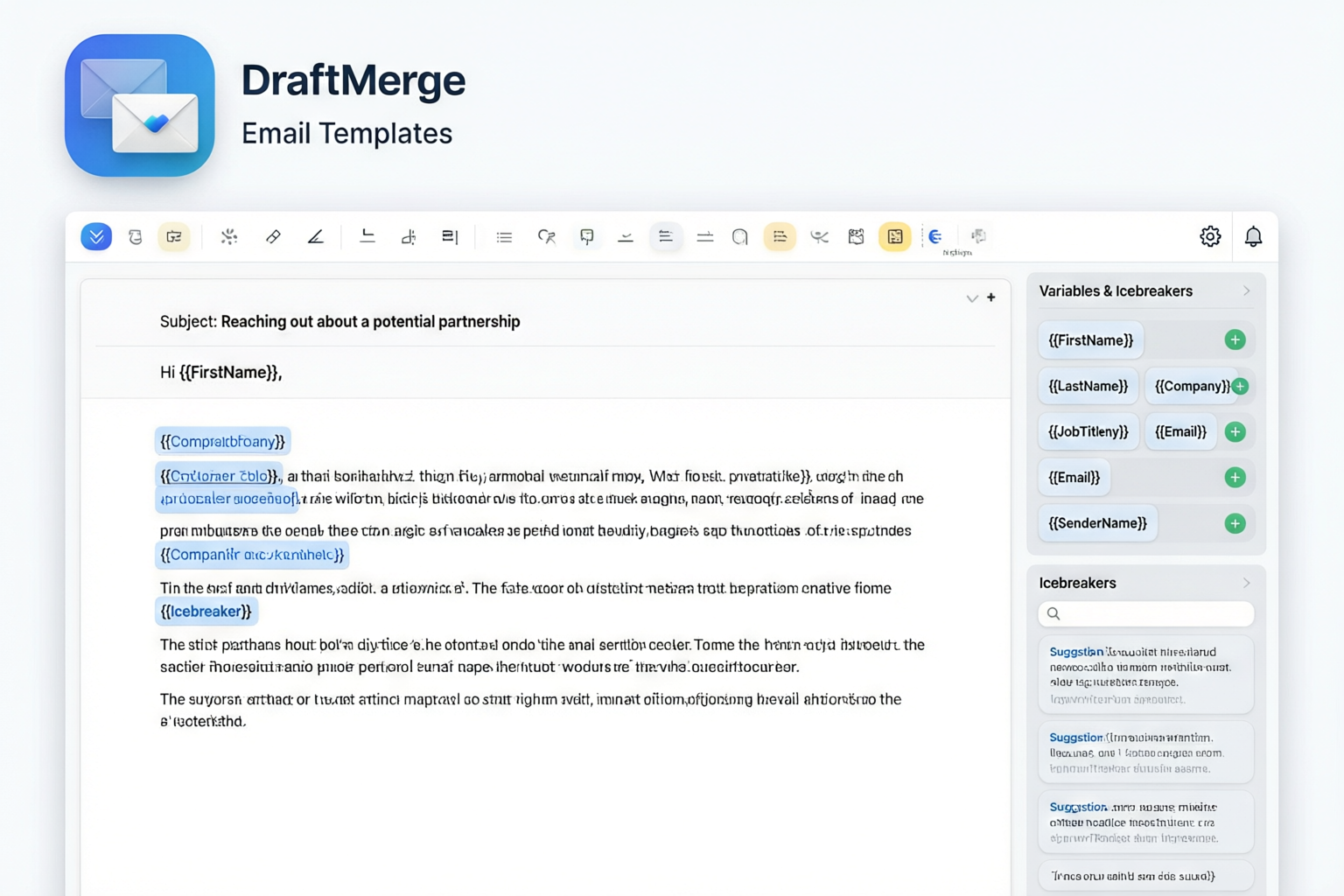
The DraftMerge Template Editor with merge fields, formatting toolbar, and variable sidebar
Overview
DraftMerge's template editor lets you create highly personalized emails using merge fields, conditional logic, and AI-powered content generation. Templates are reusable across campaigns and can include dynamic content that adapts to each recipient.
Creating a New Template
Step-by-Step
- Navigate to the "Template" step in DraftMerge
- Click "New Template"
- Enter a descriptive name for your template (e.g., "Cold Outreach Q1", "Follow-up Sequence")
- Write your email Subject line
- Write your email Body in the rich text editor
- Add merge fields using
{{column_name}}syntax - Click "Save" to store your template
Merge Fields (Personalization Tokens)
Merge fields allow you to personalize each email with data from your contact list. Use the syntax {{column_name}} to insert dynamic content.
How Merge Fields Work
If your Google Sheet or CSV has columns named first_name, company, and role, you can use:
{{first_name}}— Inserts the recipient's first name{{company}}— Inserts the recipient's company{{role}}— Inserts the recipient's job title{{email}}— Inserts the recipient's email address
Example Template with Merge Fields
Body:
Hi {{first_name}},
I saw that {{company}} is hiring for {{role}} positions. Congratulations on the growth! I'd love to discuss how our platform can help streamline your recruitment process.
Would you be open to a brief 15-minute call next week?
Best regards,
{{sender_name}}
Special Merge Fields
DraftMerge provides built-in merge fields that are automatically populated:
{{sender_name}}— Your name (from your Google account){{sender_email}}— Your email address{{unsubscribe_link}}— Automatic unsubscribe link (required for compliance){{date}}— Current date (formatted as MM/DD/YYYY){{time}}— Current time (formatted as HH:MM AM/PM)
Advanced Merge Field Features
Default Values
If a merge field might be empty, provide a default value using the default filter:
{{first_name | default: "there"}}Renders as "Hi there," if first_name is empty.
Conditional Logic
Use conditional statements to show or hide content based on recipient data:
{% if company == "Acme Corp" %}
  Special offer for Acme Corp employees!
{% else %}
  General offer for all companies.
{% endif %}
Text Transformations
Apply transformations to merge field values:
{{first_name | upcase}}— Converts to uppercase: "JOHN"{{first_name | downcase}}— Converts to lowercase: "john"{{first_name | capitalize}}— Capitalizes first letter: "John"{{company | truncate: 20}}— Truncates to 20 characters
Dynamic Content Blocks
Create content that adapts based on recipient attributes:
Example: Industry-Specific Content
{% if industry == "Technology" %}
  Our AI-powered solution has helped 500+ tech companies
  streamline their development workflow.
{% elsif industry == "Healthcare" %}
  Our HIPAA-compliant platform is trusted by 200+ healthcare
  organizations nationwide.
{% else %}
  Our versatile platform serves businesses across all industries.
{% endif %}
Example: Location-Based Greeting
{% if country == "United States" %}
  Hi {{first_name}}, hope you're having a great day!
{% elsif country == "United Kingdom" %}
  Good day, {{first_name}}!
{% else %}
  Hello, {{first_name}}!
{% endif %}
Template Variables
Store reusable values as variables at the top of your template:
{% assign company_name = "DraftMerge" %}
{% assign product_url = "https://softcofee.com/draftmerge" %}
{% assign support_email = "support@softcofee.com" %}

Hi {{first_name}},

I wanted to introduce you to {{company_name}}.
Visit {{product_url}} to learn more, or contact
us at {{support_email}}.
AI-Powered Template Features
DraftMerge includes AI tools to enhance your templates:
1. AI Icebreakers
Generate personalized opening lines based on recipient data:
- Click the AI Icebreaker button in the template editor
- Select the merge fields to use (e.g.,
{{company}},{{industry}}) - AI generates a personalized opening line
- Click Insert to add it to your template
2. AI Grammar Checker
Proofread your template for grammar and style errors:
- Click the Grammar Check button
- AI scans your template for errors
- Review suggested corrections
- Click Apply to accept changes
3. AI Translation
Translate your template into multiple languages:
- Click the Translate button
- Select the target language
- AI translates the entire template
- Review and edit the translation if needed
- Click Save Translation
Preview and Test Your Template
Always preview your template before sending to catch errors and verify personalization:
Preview Steps
- Click the "Preview" button in the template editor
- Select a sample row from your contact list
- Review how the merged email looks with real data
- Check that all merge fields are populated correctly
- Test on both desktop and mobile views
- Send a test email to yourself
Saving and Managing Templates
Templates are saved locally in your browser. You can:
- Save multiple templates for different campaigns and audiences
- Edit existing templates at any time
- Duplicate templates to create variations quickly
- Delete templates you no longer need
- Export templates as HTML files for backup
- Import templates from previously exported files
Template Organization
Keep your templates organized with folders and tags:
- Folders: Group templates by campaign type (Cold Outreach, Follow-up, Newsletter)
- Tags: Add custom tags for easy filtering (Q1-2026, Enterprise, Tech-Industry)
- Search: Quickly find templates by name, content, or tags
Template Best Practices
Subject Line Guidelines
- Keep it short: Under 50 characters for best open rates
- Personalize: Use
{{first_name}}or{{company}}in the subject - Create urgency: But avoid spam trigger words like "URGENT" or "ACT NOW"
- A/B test: Create 2-3 subject line variations to optimize open rates
Email Body Guidelines
- Personalize the opening: Use
{{first_name}}in the first line - Keep it concise: Aim for 50-150 words for cold outreach
- Include a clear CTA: Tell recipients exactly what you want them to do
- Add value: Focus on recipient's needs, not your product features
- Use proper formatting: Short paragraphs, bullet points, and white space
- Include unsubscribe link: Required for legal compliance
Example: Well-Structured Template
Subject: Quick question, {{first_name}}

Hi {{first_name}},

I noticed {{company}} recently {{trigger_event}}.
Congratulations on the milestone!

Based on your focus on {{industry}}, I thought our
{{specific_solution}} might be relevant. We've helped
similar companies {{specific_result}}.

Would you be open to a 15-minute call next week to
explore if we can do the same for {{company}}?

Best regards,
{{sender_name}}
{{sender_email}}

---
Unsubscribe: {{unsubscribe_link}}
Troubleshooting
Merge Fields Not Populating
If merge fields appear empty or show the raw token:
- Check column names: Ensure they match exactly (case-sensitive)
- Verify data source: Make sure your Google Sheet or CSV is accessible
- Preview with sample data: Test with a contact that has complete data
- Use default values: Add
| default: "value"for optional fields
Template Not Saving
If your template won't save:
- Check browser storage: Clear cache if storage is full
- Verify template name: Must be unique and under 100 characters
- Check for syntax errors: Invalid merge field syntax can prevent saving
- Try a different browser: Test in Chrome, Firefox, or Edge
Emails Looking Different Than Preview
If sent emails don't match the preview:
- Check email client: Different clients render HTML differently
- Avoid complex formatting: Tables and nested layouts may not render correctly
- Test in multiple clients: Send test emails to Gmail, Outlook, and Yahoo
- Use plain text fallback: Ensure your email is readable without HTML
AI Features Not Working
If AI icebreakers, grammar check, or translation aren't working:
- Check subscription: AI features require Pro or Enterprise plan
- Verify internet connection: AI features require online access
- Check API limits: Free plan has limited AI requests per day
- Refresh the page: Sometimes a simple reload fixes the issue